Organizer guide · Game Night
Create and run a Game Night
Choose the iOS or web organizer walkthrough, understand registration and public viewing, and prepare your club’s first Game Night.
iOS and web · Updated
Published (first source record):
iOS version checked: Not recorded; current version not verified · Android version checked: Not recorded; current version not verified
The publication date is the first article record on main; the original production publication time was not recorded. Screenshot capture dates and versions are listed separately.
Example screenshots show the English interface. The written content follows your selected language.
Choose your organizer walkthrough
Use Create and run a Game Night in the iOS app or Create and run a Game Night on the web in the related guides below. Each follows that platform’s own controls from creation to final results. The iOS walkthrough includes Add players for an outside registration list; the web walkthrough uses Website RSVP and explains the supported handoff.
Before you create an event
This walkthrough is for a club Game Night. Sign in with an account authorized to manage that club or its event group. If management controls are missing, ask a club administrator to check your role. Free managers can create one event scheduled per week across their clubs; Pro removes that weekly limit. Check the allowance shown during setup. DUPR-rated play has additional connection and eligibility requirements. A Personal Game Night is a separate option in Play for a small group on one or two courts; it does not use the club management workflow.
Prepare registration, courts, and the club TV
Before the night, agree on the format, courts, expected attendance, manager access, and registration method. Public scoreboard viewing requires neither an app download nor sign-in. Registration and manager score entry have separate requirements. Test the TV’s browser connection and event QR in advance.
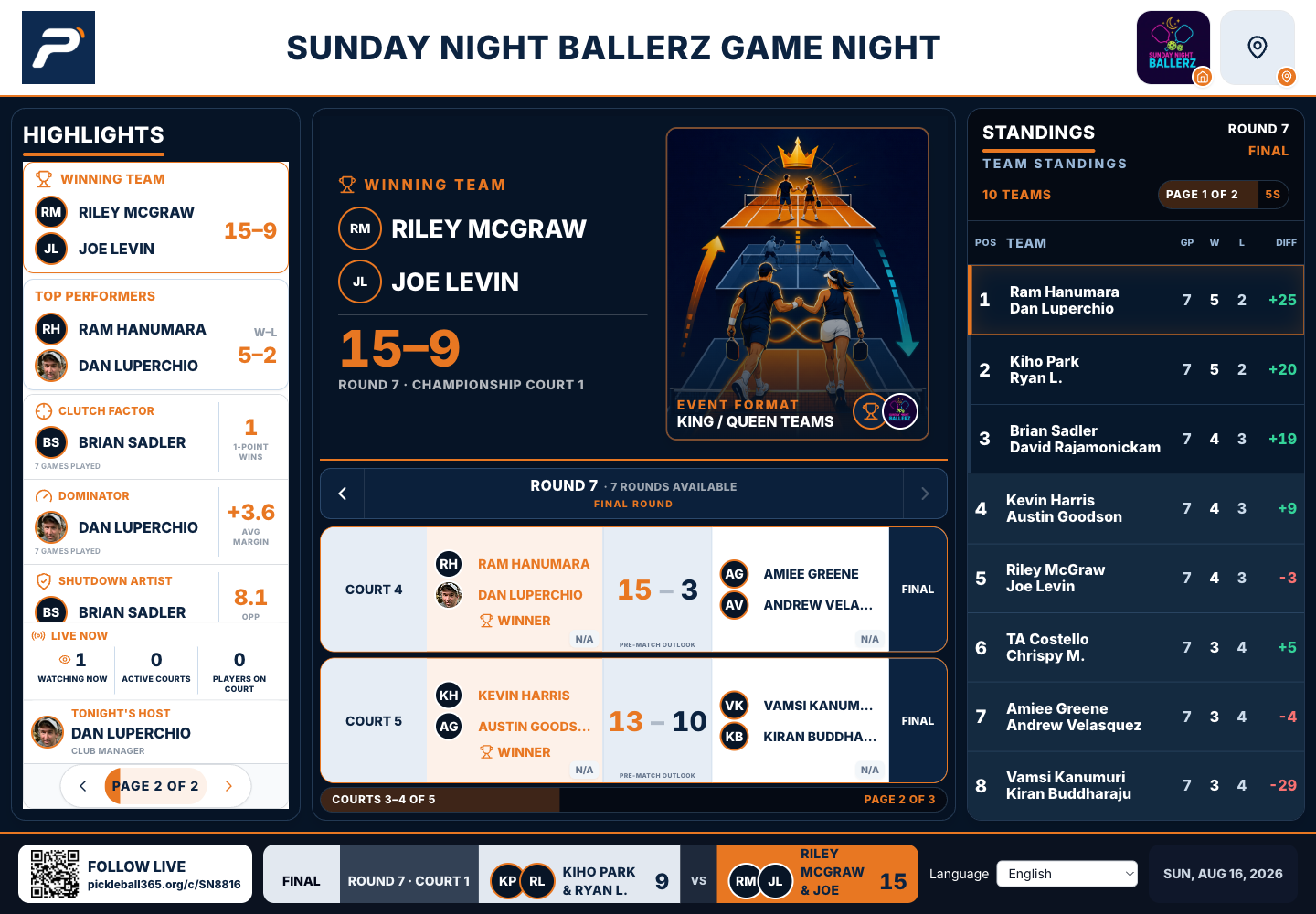
The public TV-style browser display of a completed August 16, 2026 Game Night, captured October 13. The QR opens this event’s public scoreboard. Tap to enlarge the court, standings, and QR details; this example is not a session currently in progress.
Screenshot platform: Web · Version: Not recorded
Captured: October 13, 2026. Tap the image to enlarge.
Run a supported preview and share feedback
For a supported preview, agree on the setup and registration about a week ahead. The host can help you run the agreed session and collect feedback. Confirm app access and any club or player court fees separately from the offer of no-cost setup and on-site assistance.