Web guide · Game Night
Create and run a Game Night on the web
A web organizer walkthrough: create the event, collect RSVPs, publish the lineup, generate matches, start play, enter scores, and display the public scoreboard.
Web app · Updated
Example screenshots show the English interface. The written content follows your selected language.
Before you create an event
This walkthrough is for a club Game Night. Sign in with an account authorized to manage that club or its event group. If management controls are missing, ask a club administrator to check your role. Free managers can create one event scheduled per week across their clubs; Pro removes that weekly limit. Check the allowance shown during setup. DUPR-rated play has additional connection and eligibility requirements. A Personal Game Night is a separate option in Play for a small group on one or two courts; it does not use the club management workflow.
Create and publish
Publishing creates the event page. Registration, publishing the lineup, generating matches, and starting play are separate steps.
- Sign in on the website with your manager account. Open Manage Club → Events for the correct club, then select Create Game Night.
- In Format, choose singles or doubles, the game format, and whether teams need names. Use Continue to work through Event, Play, Players, and Review.
- Set the event name, location, scheduled time, duration, physical court numbers, scoring rules, capacity, and waitlist options. For timed play, review game length and transition time.
- In Players, enable Website RSVP and set RSVP opens and RSVP closes. In Review, choose Managers only for Who enters scores? Club score entry is authorized for managers.
- Resolve any Social or DUPR-rated eligibility messages. Select Publish event, then Confirm publish; or Save draft to finish later. Publishing does not start play.
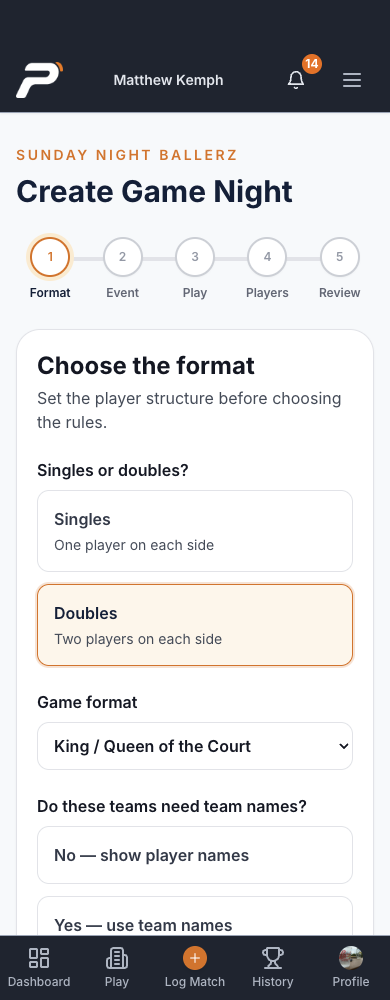
Web setup begins with the format, then takes you through event details, play rules, players, and review.
Web screen captured September 26, 2026. The iOS layout may differ. Tap the image to enlarge.
Register players or use your existing registration list
Website RSVP and an outside registration list both need a confirmed Game Night roster. Your outside booking system does not automatically sync registrations into Pickleball365.
- Copy the event registration link from the Events list and send it to your players. The registration link is separate from the public scoreboard link.
- Review accepted players, partner status where required, and the waitlist against expected attendance. Guest RSVP, when enabled, requires an emailed confirmation code; DUPR-rated Going requires sign-in and connected DUPR.
- If you keep an outside registration system, arrange roster matching before the event. The current Add players tool is in the iOS app: an authorized manager selects existing Pickleball365 club members. The inspected web manager does not provide that tool.
- Players added from an outside list still need a Pickleball365 account and club membership, with capacity, payment, group access, and DUPR requirements met. No automatic import or booking-system sync is provided.
Prepare the lineup and start
RSVPs are the starting point; check actual attendance before starting.
- From Manage Club → Events, open the event’s Game Night control. Wait until its configured RSVP closing time before preparing the private lineup; adjust the event’s RSVP close time if needed.
- Choose Most balanced, Competitive bands, Random partners, or Build manually as appropriate. Review the private roster, teams, courts, and unresolved items.
- Open Review & publish lineup and select Publish lineup after resolving the issues. Check the published teams and starting courts.
- Select Generate schedule, review the matches, then select Start Game Night. Published registration and a published lineup are separate from starting play.
- Select Open live controls in the manager workspace. Keep that page for manager score and clock controls, and the manager workspace for lineup and completion.
Put the live scoreboard on a TV and share the QR code
The public scoreboard lets players and spectators follow live courts, scores, and standings in a browser without an app download or sign-in. Score entry and event management require an authorized signed-in manager.
- In the manager workspace, select View event page, then View game night scoreboard. Copy that browser address for your TV device and spectators; it is separate from the registration link.
- Open that link in a supported browser on a computer connected to the TV, for example by HDMI. If your equipment already supports screen mirroring, test it beforehand; Pickleball365 does not provide a dedicated casting control.
- Test the internet connection, readable court labels, and QR code from a player’s viewing distance before guests arrive. Keep the display device awake and online.
- Ask players to scan the displayed QR code to follow the same public scoreboard on their phones. Registration, the full event, and team history have separate access requirements.
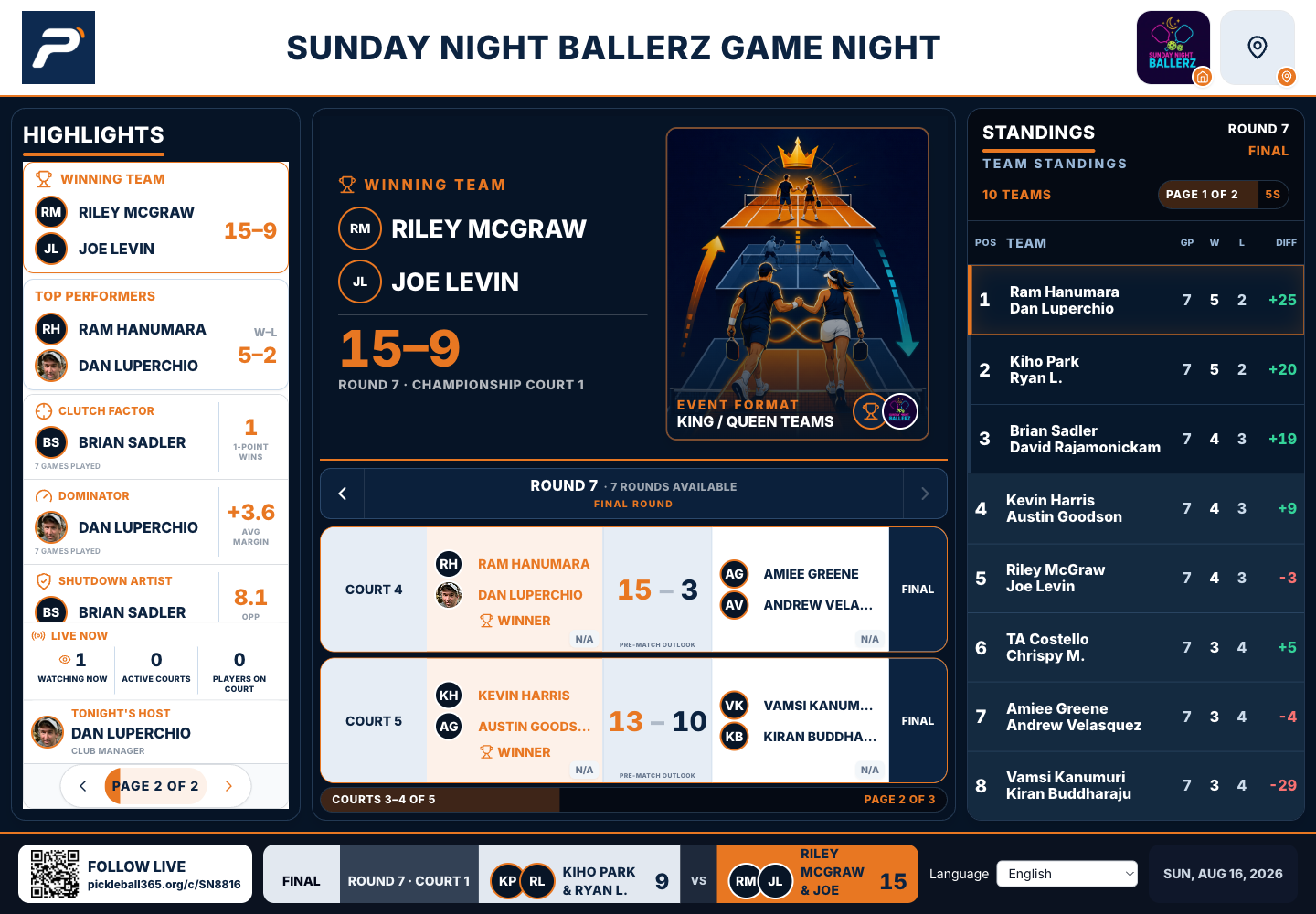
The public TV-style browser display of a completed August 16, 2026 Game Night, captured October 13. The QR opens this event’s public scoreboard. Tap to enlarge the court, standings, and QR details; this example is not a session currently in progress.
Web screen captured October 13, 2026. The iOS layout may differ. Tap the image to enlarge.
Run rounds and correct results
Follow the controls for your chosen format rather than assuming every format advances the same way.
- In the authenticated live scoring page, use Current for this round, All rounds for the schedule, and Standings to review results.
- An authorized manager opens a match, checks both teams, enters both scores, and selects Save score. Wait for Score saved and verify the result on the public display. Avoid recording a duplicate standalone match.
- For a correction, reopen the saved match, review the audited correction notice, adjust the result, and select Save score. If a conflict is shown, review the current server result before retrying.
- For timed play, use Start round, Start break, and Pause clock or Resume clock as needed. Score-based games have no game or transition clock.
- Check missing results and any advancement notice before expecting the next round. When Set up Round or a championship publication control appears, complete that format’s partner or final-match step.
- Review standings and any placement or final matches produced for your format.
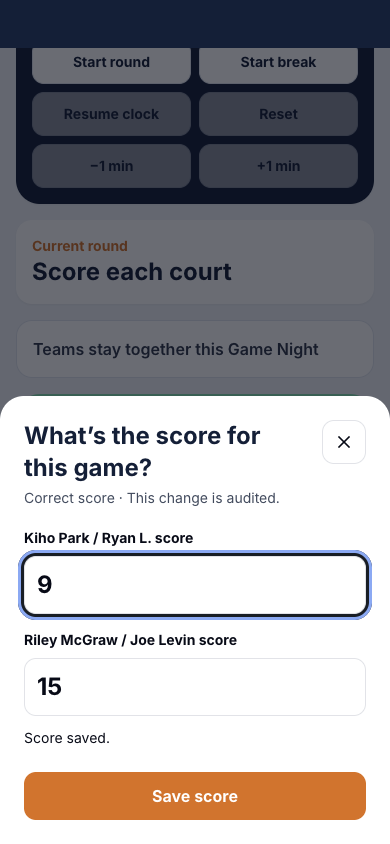
An actual web manager correction screen captured September 26. The saved result is opened with an audited correction notice and Save score control. No score was changed for this capture; players report results to a manager.
Web screen captured September 26, 2026. The iOS layout may differ. Tap the image to enlarge.
Close and share the event
Return to the manager workspace and review missing scores, pending advancement, and final matches. Select Complete Game Night once its requirements are met. Managers can still review and correct saved results afterward. Share the public scoreboard address for results; sharing does not grant management or scoring access.
Handle a late player, forfeit, or connection problem
Use the roster controls available for the event’s current stage and check the resulting assignments. The forfeit action records that match as a forfeit; it does not automatically remove the team from the event. If a score conflicts with another update, review the saved server result before retrying. Do not recreate the whole event to resolve one score.