Organizer guide · Game Night
Manage Game Night from your iPhone or Android phone
Find manager controls, review courts, save or correct scores, manage rounds, and share the club scoreboard from your phone.
iOS, Android and web · Updated
Published (first source record):
iOS version checked: 1.11 (531; simulator fixture) · Android version checked: 1.10 (local debug build 1)
The publication date is the first article record on main; the original production publication time was not recorded. Screenshot capture dates and versions are listed separately.
Example screenshots show the English interface. The written content follows your selected language.
Where are my manager controls?
Sign in with the account authorized to manage the club or event group, then open the correct event’s Game Night. iOS has its manager workspace; Android shows manager controls in Courts, Players, and Event info, with a management panel for setup and lineup actions. Missing controls can mean the wrong account, event, or role. Public scoreboard access never grants manager access.
What must be ready before I start?
Publishing the event, accepting registrations, publishing the lineup, generating the schedule, and starting play are separate steps. Check attendance, partners, courts, and unresolved warnings in that order. Outside registration systems do not automatically sync. Use the platform-specific organizer walkthrough for creation; do not assume an iOS-only roster tool is present on every platform.
How do I save and correct a score?
Select the round and court and confirm both sides before entering scores. iOS saves valid final scores automatically; wait for SAVED · FINAL, or review and use Save Score when recovery pauses saving. Android has a score sheet with Confirm and save score and Score confirmed; valid edits can also autosave. For corrections, reopen the saved result and follow its review controls. Review a newer server result before retrying a conflict, and never create a duplicate standalone match.
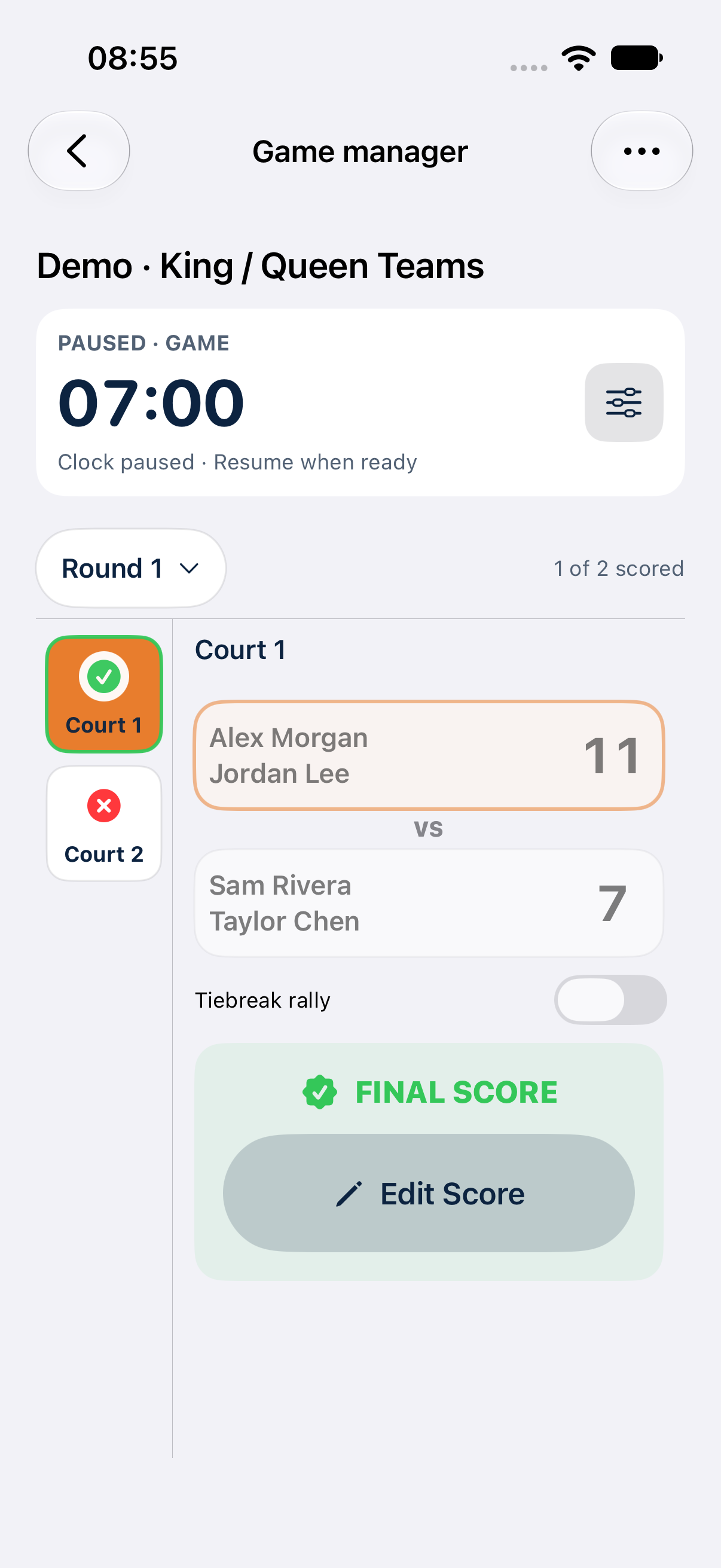
Actual iOS manager view on a dedicated iPhone simulator, using the same synthetic snapshot as the TV. Preview mode rejects server writes; this capture verifies presentation, not production score saving.
Screenshot platform: iOS · Version: 1.11 (531)
Captured: October 24, 2026. Tap the image to enlarge.
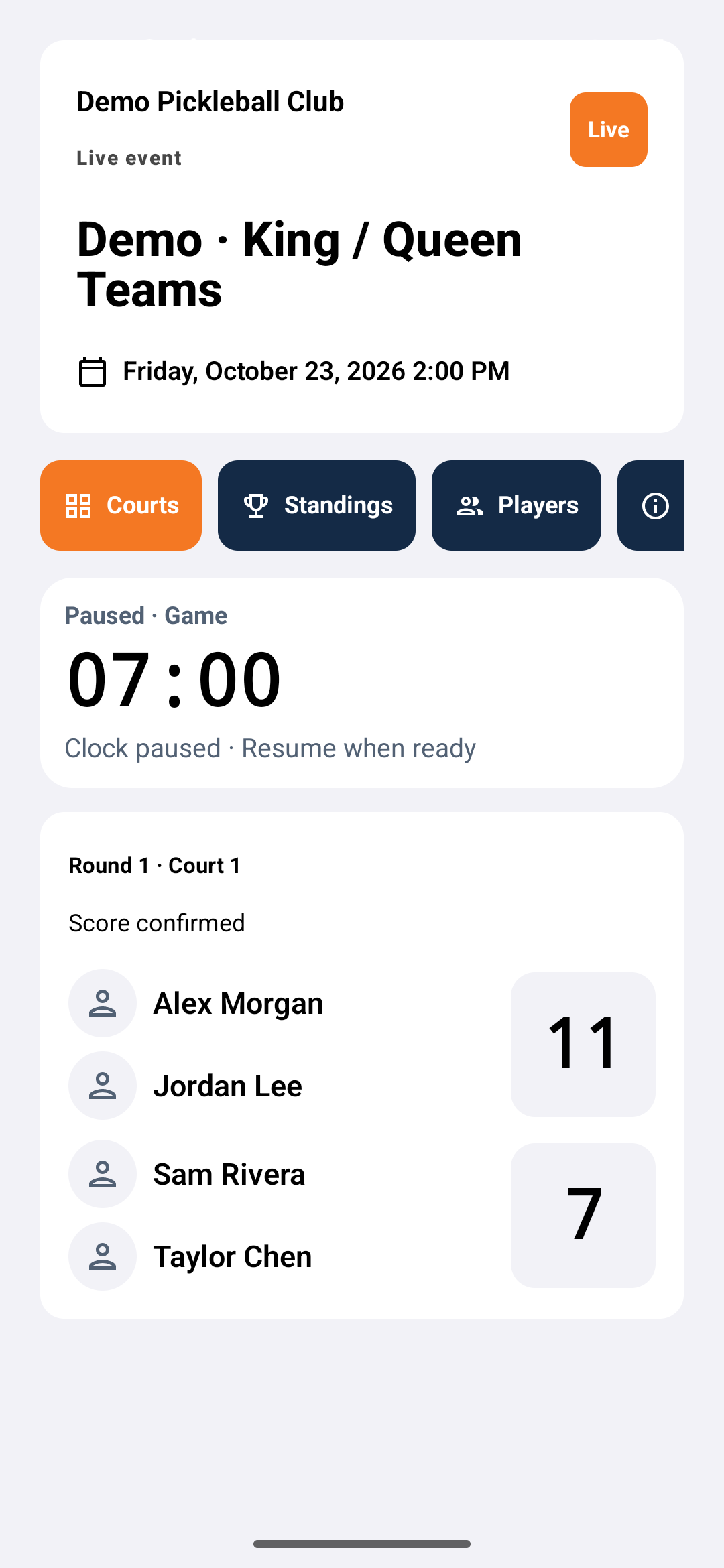
Actual Android production header, clock, court, and score components mounted by an emulator test with the shared synthetic snapshot. This is a controlled component fixture, not an authenticated live event or proof of Google Play availability.
Screenshot platform: Android · Version: 1.10 (1)
Captured: October 23, 2026. Tap the image to enlarge.
How do I manage the clock and next round?
Timed play offers clock and transition controls; score-completed play has no game clock. Check missing scores and any required partner, advancement, or final-match publication before moving players. Android’s manager panel exposes actions appropriate to the current event state; iOS provides its clock/timing and round controls. A paused clock does not mean a score failed to save.
How do I share the TV and finish the night?
Use View display / Share scoreboard on iOS or Show display QR code / Share live scores on Android. Keep the public viewing link separate from registration. Review missing scores, standings, and final matches before completing the event. iOS uses End Game Night; Android offers its completion action in the management panel. Review results afterward rather than recreating the event.
Which builds were checked, and what do the screenshots prove?
The dated examples identify the exact local iOS simulator and Android emulator builds. They exercise native presentation with shared synthetic data; Android’s score-sheet check accepts a save through an in-memory test port. These checks do not establish physical-device, live-server, billing, or store acceptance. If your screen differs, include your platform, app version/build, event, and the control you expected when contacting support.