Organizer guide · Game Night
Run a singles round robin
An organizer FAQ for singles: players, courts, rounds, registration, scores, standings, and the separate Game Night with friends workflow.
iOS and web · Updated
Example screenshots show the English interface. The written content follows your selected language.
What is a singles round robin?
Each match has one player on each side, with no partner selection or elimination after a loss. In a complete round robin, everyone plays every other player once. This guide starts with a club Game Night in the iOS app; Game Night with friends has different roster and court rules, explained below.
How many players, courts, and rounds do I need?
The current club iOS wizard sets singles capacity at two players per court. Match the confirmed roster to that capacity. For an even number of players, one complete cycle needs one fewer round than players. Fewer rounds create a partial cycle; extra requested club rounds do not automatically add a second cycle.
- 4 players · 2 courts · 3 rounds · 3 matches per player · 6 matches total.
- 6 players · 3 courts · 5 rounds · 5 matches per player · 15 matches total.
- 8 players · 4 courts · 7 rounds · 7 matches per player · 28 matches total.
- For an odd number of players or fewer courts, check the friends workflow below. Do not assume the club wizard will add a spare player or stagger matches automatically.
How do I create it in the iOS app?
Sign in with authority to manage the club or event group. Example club setup: eight players, four courts, seven rounds, individual registration, Standings decide, and No top court.
- Open Play, select the club, and open Manage events. Tap the plus or Add an event, then New Game Night.
- In Format, choose Singles, then Singles Round Robin. Continue through Event, Play, Players, and Review.
- Enter the event name, location, times, and real court labels. Review Social or DUPR-rated requirements before publishing.
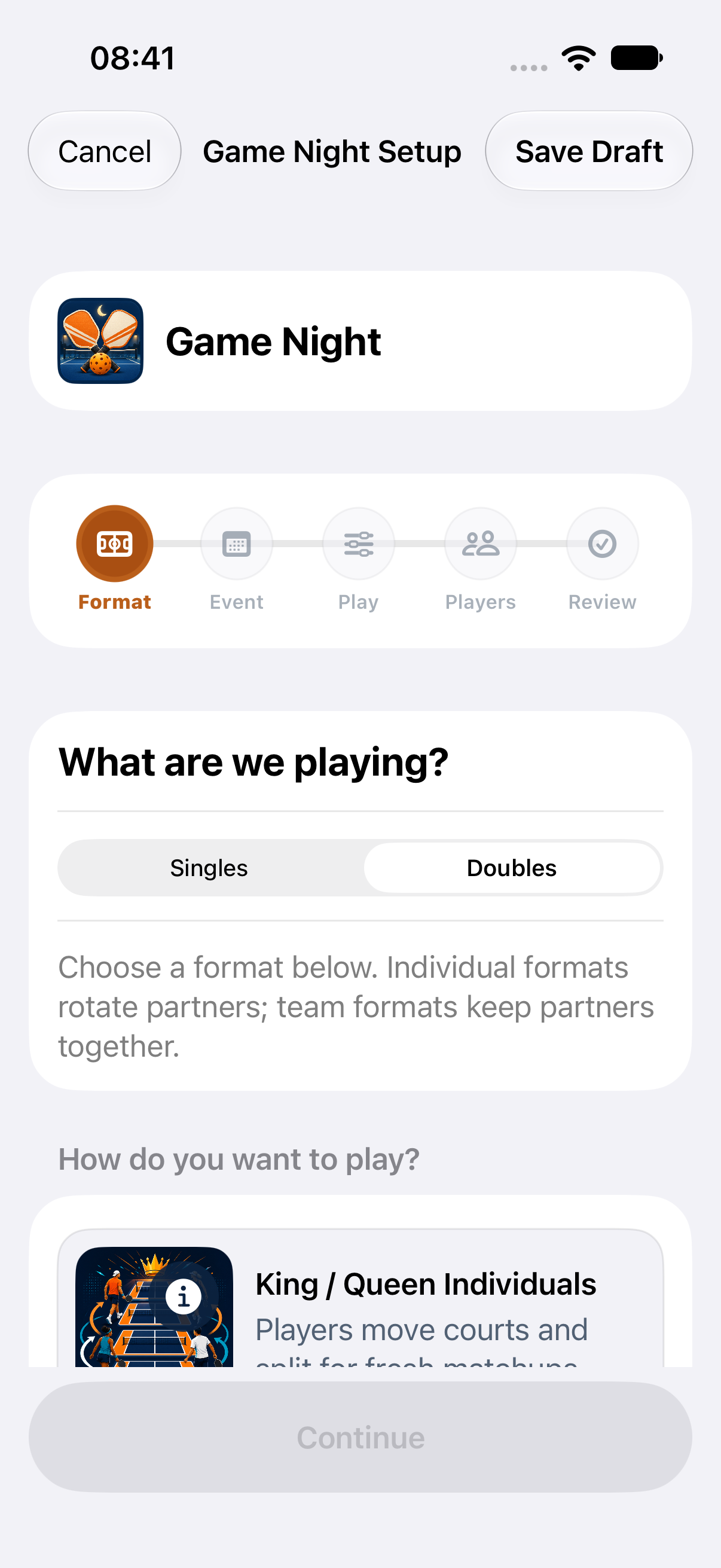
iOS example captured October 14, 2026 with synthetic data. Doubles is selected in this starting-screen image; choose Singles for this FAQ. This is not a completed singles setup or a live event.
iOS screen captured October 14, 2026. Tap the image to enlarge.
Which play settings and duration should I choose?
For a straightforward competition, choose Standings decide and No top court. Singles uses scheduled opponents; winning does not move a player up a court. The current iOS singles setup does not offer a separate championship round.
- By time: choose rounds, minutes per round, transition time, and whether tied rounds are allowed.
- By completed scores: choose Traditional or Rally, Play to 11, 15, or 21, and Win by 1 or 2. There is no game or transition clock; all required results must be complete before the next round becomes available.
- Timed example: 5-minute warm-up + 7 rounds × 12 minutes + 6 transitions × 2 minutes = 101 minutes. Add check-in and delay time. Score-based games have variable lengths.
How do players register?
Singles players register individually, without choosing or confirming a partner. Website RSVP and an outside registration list both require a confirmed roster. Outside systems do not automatically sync into Pickleball365.
- With Website RSVP, set opening and closing times and share the RSVP link. Check accepted players and the waitlist against actual attendance.
- For an outside list, use Manage Game Night → Add players in iOS, select existing Pickleball365 club members, and tap Add selected players. Account, membership, capacity, payment, group access, and rated-play requirements still apply. Guest RSVP, when offered, has its own email verification.
What must I do before Round 1?
Publishing the event opens its page; starting play is a separate action. Remember: publish event → confirm roster → publish lineup → generate schedule → start.
- Review setup and tap Publish Game Night. Let Website RSVP close, then reconcile accepted players with attendance before preparing the lineup.
- In Manage Game Night, review the private lineup. Each singles entry contains one player, even if a shared screen calls it a team. Resolve roster and court warnings, then use Review & publish → Publish lineup.
- Tap Generate Schedule and review opponents, rounds, and court labels. For eight players on four club courts, expect seven rounds with four matches per round.
- Tap Start Event when everyone is ready. Open Courts & Clock for timed play or Courts & Scores for score-based play.
Who enters scores, and how do corrections work?
An authorized club manager enters scores. Players report results to the manager; public scoreboard viewers cannot score. In iOS, select the round and court, check both player names, and enter both final scores. Valid scores save automatically after the short delay; wait for SAVED · FINAL. If recovery or an error pauses automatic saving, review and use Save Score when shown.
- For a correction, use Edit Score or Review & Edit Score, check the saved result, and use Save Correction when offered. If another manager changed it, review the newer saved score before retrying. Do not log a duplicate standalone match.
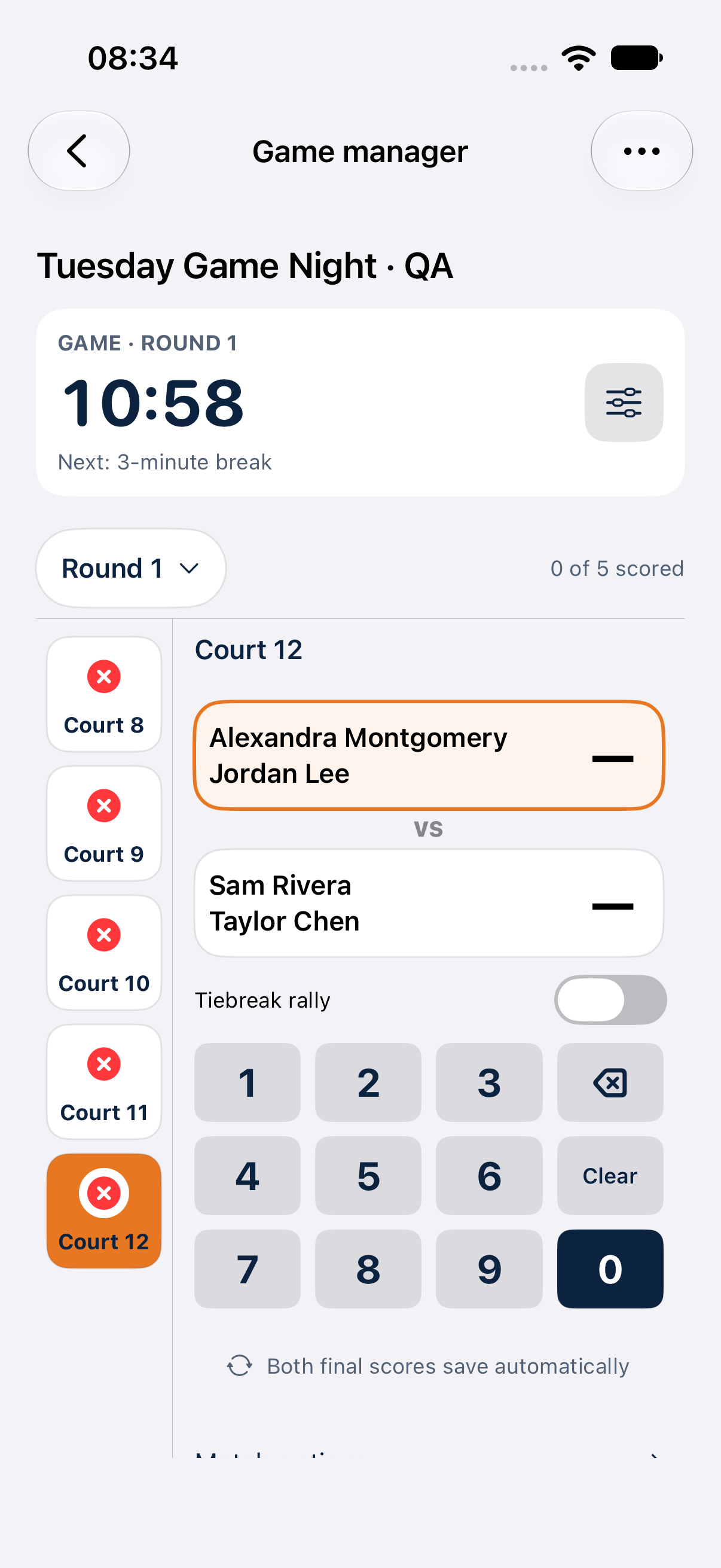
iOS scoring controls captured October 14, 2026 with synthetic doubles players. A singles match has one player per side. This shared-controls example does not demonstrate a live score save.
iOS screen captured October 14, 2026. Tap the image to enlarge.
How do rounds advance?
Check every required score has saved before expecting the next round. For timed play, open Clock & timing with the clock’s sliders control to pause or resume it. A timer reaching zero does not confirm the results were entered. Score-based play waits for completed results. Follow the generated singles opponents and courts; there is no new partner draw each round.
How are standings and tied records decided?
Wins come first. Players tied on wins can be ordered by point differential, then points scored. Do not rely on automatic head-to-head tie-breaking for singles: the current standings views do not apply it consistently. Check the displayed standings against the saved results and agree on a playoff or shared-prize rule before awarding prizes. If the sporting measures remain equal, names provide a stable display order. Missing scores are not completed results.
What if someone is late or a score cannot save?
Resolve attendance before publishing the lineup and generating matches whenever possible. Once play starts, use only the roster actions available for that stage; do not assume a late player automatically joins every remaining singles round. A forfeit applies to one match and does not remove the player from the entire event. If a save fails, keep the original score, reconnect, and check the stored result before retrying. Do not recreate the event to repair one result.
How do I share the TV display and finish the night?
Use View display and Share scoreboard in the iOS manager view. Open your event’s public link in a TV browser or a computer connected by HDMI. Keep it awake and online. Players can scan its QR without signing in or installing the app. The scoreboard link is separate from registration and does not grant score access. Review final results, then use End Game Night and read its confirmation. Managers can later use Review Scores for corrections. Social results do not automatically establish an official DUPR submission; check rated-play eligibility and submission status.
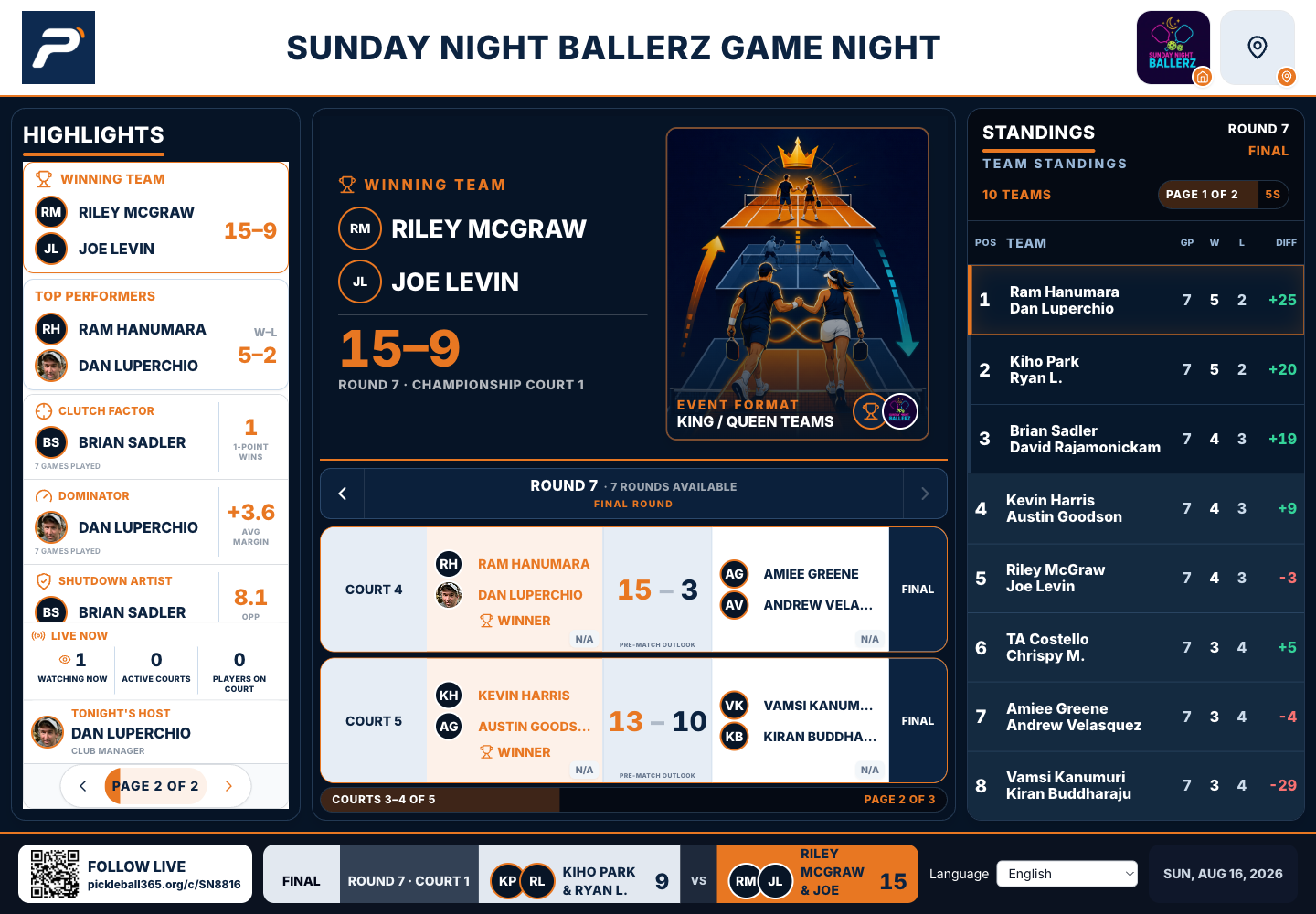
Browser display captured October 13, 2026 from a completed August 16 doubles event. This shows the TV layout, not a current singles event. Use your own event’s link and QR; the example QR belongs to the historical event.
Web screen captured October 13, 2026. The iOS layout may differ. Tap the image to enlarge.
Can I create the singles club event on the web?
The browser shows Singles → Round robin, but successful singles creation through that wizard has not been verified for this FAQ. Use the iOS club setup reference above. For an existing event, the web manager uses Save score and waits for Score saved; completion uses Complete Game Night in the workspace. The related web organizer guide explains those controls.
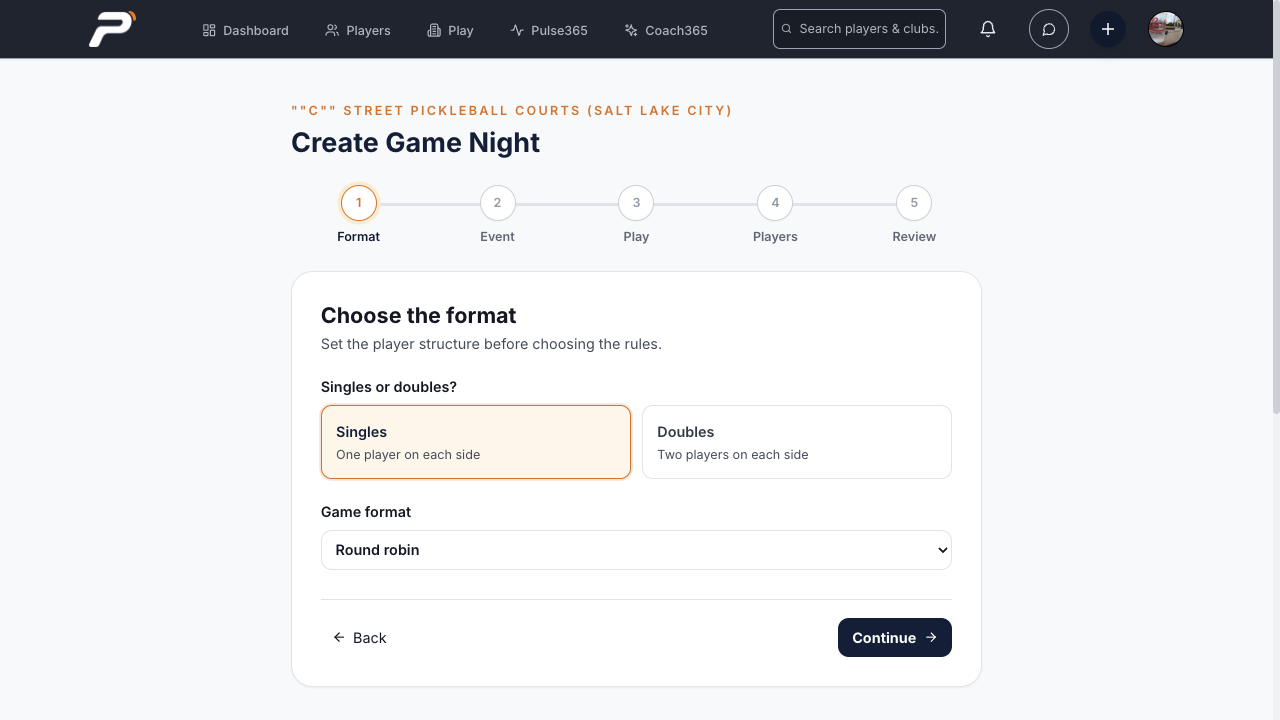
Actual web interface captured October 19, 2026 before saving or publishing. The visible club is the account’s default selection. This confirms the choices shown, not successful singles event creation.
Web screen captured October 19, 2026. The iOS layout may differ. Tap the image to enlarge.
What changes for Game Night with friends?
This separate Social flow in Play supports 2–8 singles players on one or two courts. Choose Singles Round Robin, add guests or invite registered players, and confirm attendance. Pending invitations do not count as attending. Matches that cannot fit simultaneously are split across successive scheduled rounds, so fewer courts need more rounds for a complete cycle.
- 4 players: 1 court needs 6 scheduled rounds; 2 courts need 3 rounds. Both produce 6 matches.
- 5 players on 2 courts: 5 rounds and 10 matches, with one bye per player.
- 6 players on 2 courts: 10 rounds and 15 matches. Both courts are not filled in every round.
- 8 players: 2 courts need 14 rounds; 1 court needs 28 rounds. Both produce 28 matches, seven per player.
- Fewer rounds give partial coverage; extra rounds can repeat opponents. On the web, use Preview schedule, inspect the full schedule, then Start Game Night. The host records scores. Read Finish Game Night carefully: finishing early cancels remaining games while keeping played history. Club lineup-publication steps do not apply to this friends flow.
What should I check before players arrive?
Confirm the format, roster, court labels, rounds, scoring rules, and who will collect scores. Match club capacity to attendance or check planned sit-outs in the friends schedule. Verify every opponent pairing if you intend a complete cycle. Test your event’s public display, QR, and internet connection, and explain tied-standings rules before play.