Mobile guide · Community & gear
Add and manage gear in My Bag
Save paddles, shoes, grips, and your pickleball; choose active and primary equipment.
iOS app · Updated
Published (first source record):
iOS version checked: Not recorded; current version not verified · Android version checked: Not recorded; current version not verified
The publication date is the first article record on main; the original production publication time was not recorded. Screenshot capture dates and versions are listed separately.
Example screenshots show the English interface. The written content follows your selected language.
Add your equipment
My Bag records the gear you use.
- Open Profile and find My Bag.
- Tap Add a paddle or Add shoes and search the catalog.
- Select the correct item and complete the add flow.
- Use Add a grip for optional grips and Add a pickleball or Change pickleball for your preferred ball.
- Return to My Bag and confirm the items appear.
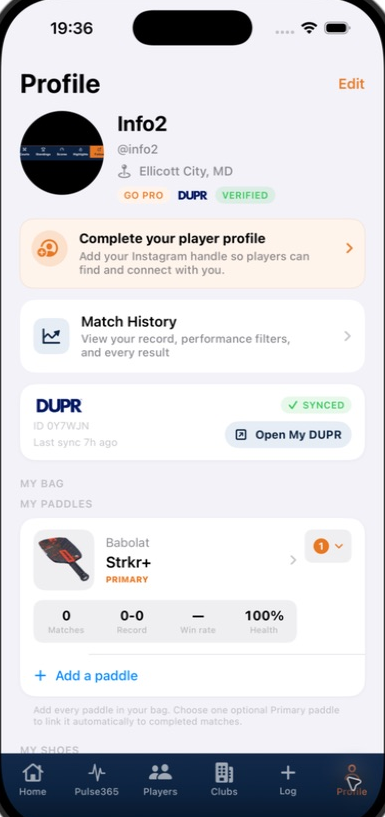
Scroll to My Bag on your Profile and use Add a paddle to start adding equipment.
Screenshot platform: iOS · Version: Not recorded
Captured: Not recorded. Tap the image to enlarge.
Choose primary and active gear
Open an item’s available actions to set it as primary, activate it, or retire it. Paddle actions may also offer a secondary choice. Primary gear identifies your default choice; retired or inactive gear is no longer your current equipment. Read the action before using Remove.
Confirm what you are using
When Still playing with this paddle and these shoes? appears, check the selections and use Confirm current gear. You can leave either unset. This confirmation contributes to group equipment counts and does not rewrite past matches.
Gear insights and popularity
Open an item to explore the details and match information available. Popularity reflects reports from participating members, not proof that an item will improve your game. Small groups may be hidden for privacy. Gear information depends on what has actually been recorded.
Shop Gear and Club Favorites
Where Shop is enabled, open Shop Gear in the Home feature carousel or at the bottom of My Bag. Swipe the carousel or use its feature controls. Play Overview stays focused on clubs. Choose Paddles or Shoes and search by brand or model. Club and group pages show up to three paddles and three shoes directly under Club Favorites; group favorites use the parent club. Shop Club Favorites opens the full list. Counts use each player’s non-retired primary paddle or primary shoes and require at least 10 contributors and 3 players per displayed model. If there is not enough data, add your primary equipment to My Bag. Retire equipment you still own but no longer use to keep it in My Retired Bag. Delete equipment from the bag if you no longer have it. Recorded paddle and shoe results are kept; grip tape stores your selection without win/loss metrics. Pickleball Central links open externally and may earn Pickleball365 a commission. Availability depends on web, iOS, and Android rollout. Reviewed October 22, 2026; Shop Gear design and bag lifecycle implementation.
An item is missing from the catalog
Try the brand and model separately and check spelling. Use a suggestion option when offered, or send support the exact brand and model. Avoid choosing a different model just to fill the bag.