Mobile guide · Your game
Connect DUPR and understand your sync
Link the right DUPR account, check connection status, and troubleshoot missing matches.
iOS app · Updated
Published (first source record):
iOS version checked: Not recorded; current version not verified · Android version checked: Not recorded; current version not verified
The publication date is the first article record on main; the original production publication time was not recorded. Screenshot capture dates and versions are listed separately.
Example screenshots show the English interface. The written content follows your selected language.
Connect your account
Have your DUPR sign-in details ready. Connecting an account and completing a history sync are separate steps.
- Open Profile and tap Connect on the DUPR card. You can also open Profile → Edit → Connect DUPR account.
- Tap Continue to DUPR.
- Sign in to your own DUPR account and review the consent screen. Complete the connection and return to Pickleball365.
- Look for DUPR connected. If Complete match history sync appears, use it to finish the remaining sync.
- Return to Profile and check your DUPR ID and last-sync information. Open Match History to review imported results.
What linking does
Linking lets Pickleball365 bring in the DUPR information you authorize. DUPR remains the source of your official rating. Pulse is a separate current-performance signal. A saved Social match does not change your DUPR rating.
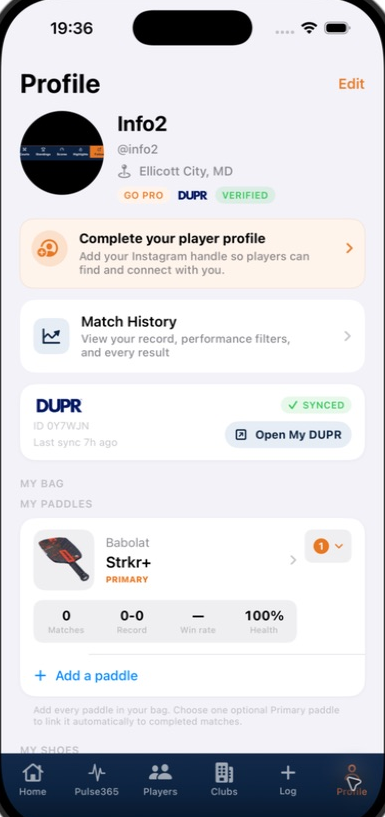
After connecting, check the DUPR card on your Profile for its connection status.
Screenshot platform: iOS · Version: Not recorded
Captured: Not recorded. Tap the image to enlarge.
A match or rating is missing
Check the DUPR connection first, then the sync information. Use Open My DUPR to compare with your DUPR profile. If the connection flow offers a retry or history-sync action, complete it. Avoid logging an imported match again just to make it appear. If it remains missing, contact support with the date and opponents.
Manage or disconnect DUPR
Open the DUPR connection controls in Profile or Edit Profile, choose the disconnect action, and read the confirmation. Existing ratings and match history remain available after disconnecting. If you linked the wrong account, ask support for help before creating replacement records.